Help center
Installing and supporting Veesion as a reseller
Everything a partner needs between signing a store and handing it over.
Stuck?
Contact support1. Understanding Veesion
Introduction to Veesion
Veesion helps retailers better identify and prevent shoplifting by showing them where to focus their attention. It detects gestures that are more likely to result in theft and are harder to notice, even when standing in front of a camera all day. For instance, someone hiding a product within its clothes or a backpack.
Veesion works with 2 separate products that communicate together:
- The Veesion Server, which is connected to the shop’s CCTV system and automatically identifies gestures that are more likely to be suspicious.
- The Telegram application, which sends alerts with suspicious gestures.
Here’s an illustration that you can share with customers to summarize how these 2 products work together:
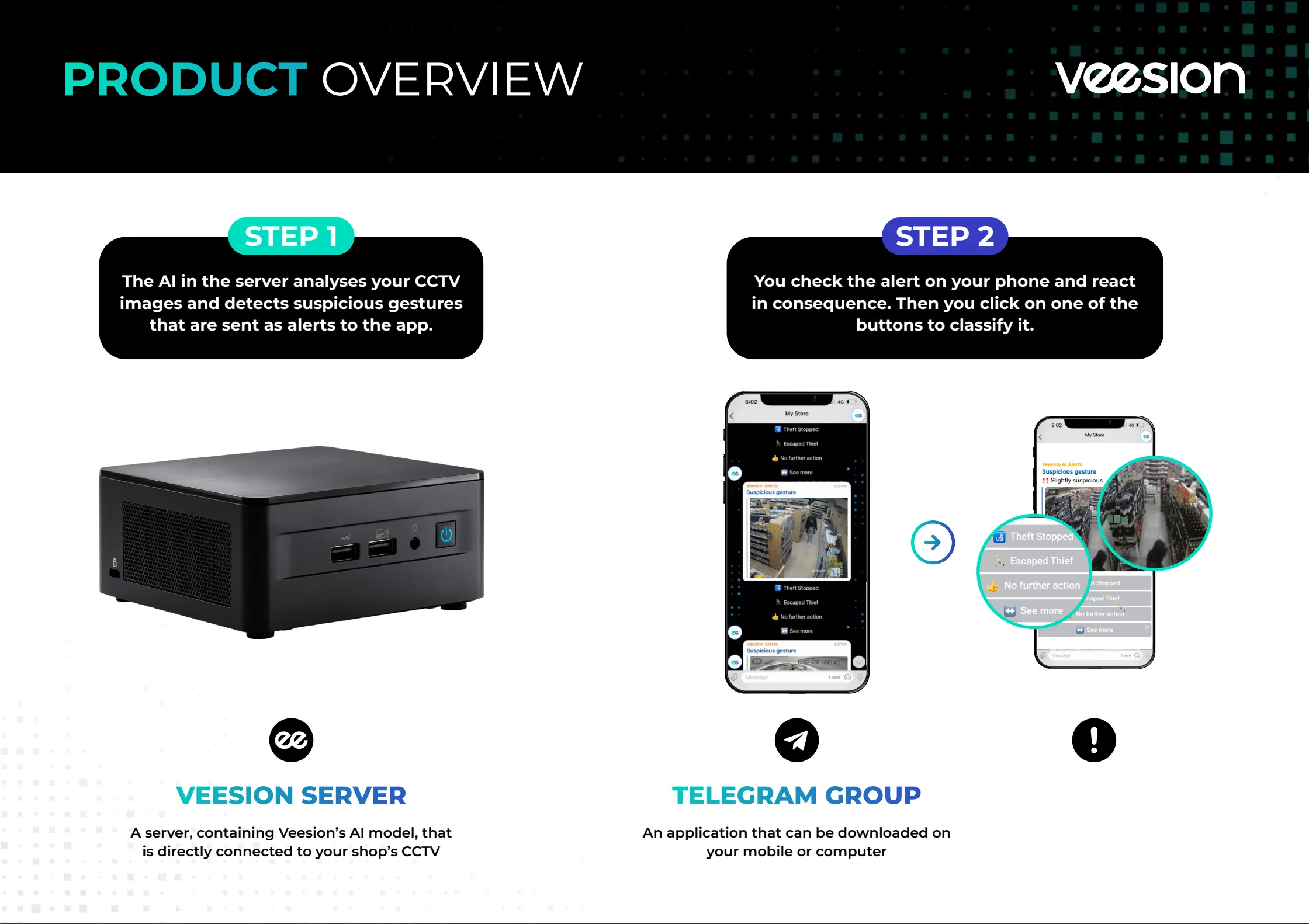
On a daily basis, the retailer interacts only with the Telegram application to check the alerts and act on them.
How does it work?
The Veesion Server needs to be connected to the shop's CCTV system to continuously analyze video streams. It contains Veesion’s AI-based models, which have been trained to identify and recognize specific gestures as more likely to be thefts. These gestures are called “suspicious gestures” in Veesion’s lingo.
For instance, if someone puts an item under one’s shirt while being filmed by a camera, Veesion will be able to identify the gesture and detect it as suspicious. It will then send an alert to the Telegram group.
Today, Veesion detects 6 different types of gestures:
- “Very Suspicious” that groups gestures most likely to result in theft.
- “Slightly Suspicious”, “Gestures into Body”, “Product in Stroller”, “Product in Suspicious Bag”, and “Product in Shopping Bag” that are less likely to result in theft but can still be considered suspicious depending on the shop.
For more details about the gestures, refer directly to the following section: Which gestures does Veesion detect?
⚠️
Gestures that are not part of the categories described above won’t be detected by Veesion. This is explained by the fact that the algorithms haven’t been trained to recognize them and can’t know, as such, that they are thefts.
The Veesion algorithm is based on the analysis of pixels in a succession of frames to identify movement on a video. It doesn't have a detection rate of 100%, as the performance of the Artificial Intelligence model also depend on parameters that can’t be controlled by Veesion. For instance:
- The camera’s images need to show the profile of a person for the AI to be able to properly detect the movements and gestures,
- The cameras must be focused on one aisle only to ensure a good detection rate,
- The cameras should not be too far from the subject (height and length)
- The right gestures should be activated/deactivated depending on the shoppers’ habits
- … and so on.
For more details on the cameras’ positioning and Veesion’s parameters, refer directly to the following sections: How to configure Veesion to my shop? and Best practices and Tips > 🎦 On camera positioning.
Once a gesture has been detected by Veesion, an alert is automatically sent to the retailer's Telegram group with the name of the gesture’s category.
Receiving an alert means that the specific behavior or gesture is more likely to result in theft, but the retailer still has to double-check before acting on it.
Which gestures does Veesion detect?
First of all, Veesion detects only specific gestures, that the Artificial Intelligence model has been trained to recognize and detect as suspicious. You’ll find below the list of gestures. Other categories of gestures are not detected by Veesion as of today. To better understand how Veesion works, refer to the section: “How does it work?”.
The strongest alert a retailer can receive is called “Very Suspicious” (Category #1, see below). The other categories detect suspicious gestures that might lead to theft, but are less likely to be so based on camera positioning or the nature of the gesture. Regardless of the gesture’s category and alert received, the retailer should always double-check the video before reacting.
Veesion differentiates 6 categories of gestures:
- Category #1 - 🛑 Very Suspicious: When items are concealed under one’s clothes or in personal bags, such as backpacks, purses or fanny packs (waist bags). This is the strongest alert that can be received. It can’t be deactivated.
- Category #2 - ‼️ Slightly Suspicious:When items are consumed or used in the shop (ex: drinking from a bottle or using a cosmetic product)
- When items are unpackaged or removed from safety locks
- When items are taken in bulk, i.e. when an item is picked up more than 4 times in a row
- Category #3 - Gesture into Body: When items are held close to the body making them harder to clearly determine as theft.
- Category #4 - ⁉️ Product in Stroller: When items are put on top of or under a stroller, or other vehicles such as wheelchairs.
- Category #5 - ❗Product in Suspicious Bag: When items are added to canvas bags and / or held on the shoulder or close to the body.
- Category #6 - ⁉️ Product in Shopping Bag: When items are added to plastic bags, shopping bags or paper bags.
Note that the categories 2 to 6 can be deactivated depending on the shop’s needs and shoppers’ habits.
You can find here a one-pager with a recap of the gestures, that you can share with your customers.
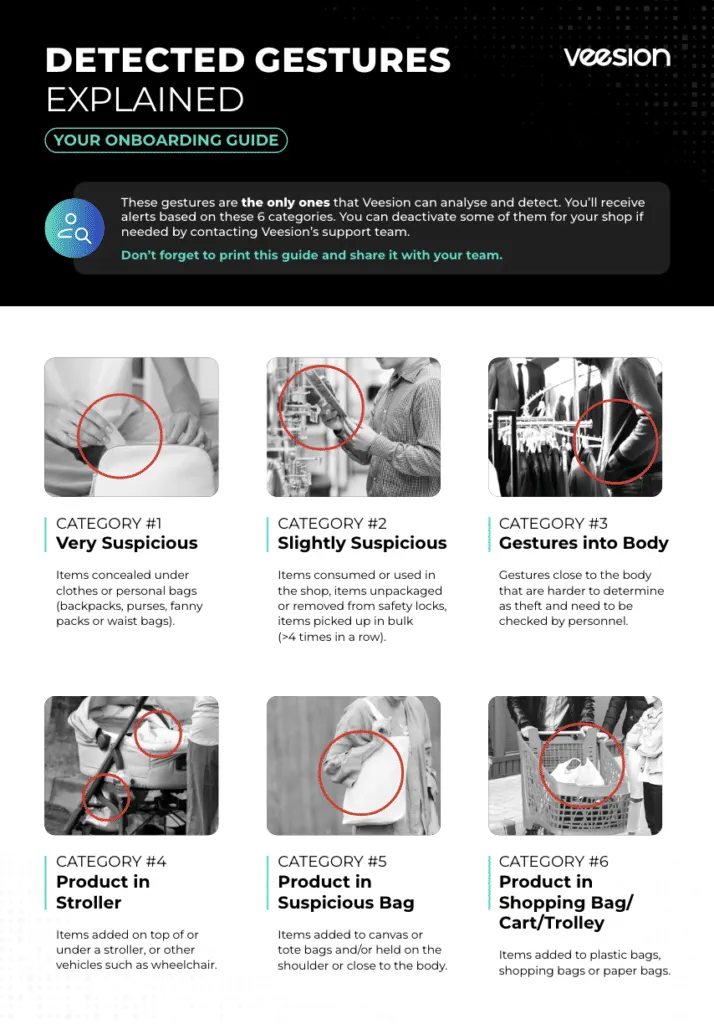
Each type of gesture corresponds to a specific alert that is received directly in the application. For more details on the alerts, refer to the following sections: How to receive alerts on Telegram? and How to qualify alerts on Telegram?.
2. Your onboarding with Veesion
As a reseller for Veesion, you follow a dedicated onboarding aimed at giving you all the tools and knowledge you need about Veesion. Your onboarding is structured in 2 phases.
- Onboarding with Veesion’s Customer Success team. The goal of this phase is to show you how customers receive alerts from Veesion and how they should qualify them. At the end of your onboarding sessions, you should be able to:Onboard customers on the application
- Send the right information to Veesion to fine-tune the customer’s settings
- Answer generic questions and handle main objections from the customer
- Onboarding with Veesion’s Installation team. The goal of this phase is to show you the installation process for Veesion’s Server depending on the shop’s configuration. At the end of your onboarding sessions, you should be able to:Install a Veesion Server in a shop
- Check the Server’s connection with the Remote Control
- Send the right information back to Veesion
- Answer generic questions and handle main shop configurations.
These onboarding sessions aim to give you global and in-depth knowledge of Veesion’s products and services. You should be able to autonomously install and onboard customers while answering their main questions and objections.
You can always access the FAQ and guides below to remind you of the process and tools at your disposal, whether installing, onboarding or assisting customers in their usage of Veesion.
3. Installing the Veesion Server
What are the requirements to install Veesion in a shop?
What are the technical prerequisites to installing Veesion?
The CCTV system and Internet network must meet certain criteria before Veesion can be installed.
- Veesion needs access to the video recorder to analyze the video streams and detect suspicious gestures. The video recorder can be a DVR or an NVR.
- Veesion needs to be compatible with the shop’s camera models.
- Veesion needs access to the Internet to send alerts to the customer.
✅ Prerequisites for the video recorder (DVR/NVR):
- Must support RTSP Protocol
✅ Prerequisites for the cameras:
- Résolution: D1 (704576)
- Bitrate: min: 512, ideal: 1024 Kbps
- Codec, Compression: H264 (not H265)
- FPS, IPS: min: 6, max: 15
✅ Prerequisites for the Internet access point:
- No proxy or firewall
- Port 123 open in UDP
- Port 51820 open in UDP (Wiregard VPN)
- Port 5671 open in TCP (Message broker)
- Port 443 open in TCP (Veesion API, services Cloud)
- Port 53 open in TCP/UDP (if no DNS local)
- An effective bandwidth of 3Mbps during installation and updates, and 1Mbps in normal use (upload).
You can access the list here.
As you install Veesion into a shop, note that you must:
- Ensure that the motion detection & HIKconnect options are deactivated on the cameras
- Provide information to Veesion: RTSP URL for brands other than Hikvision or Dahua
- Login and passwords for the DVR/NVR
- IP address of the DVR/NVR
- Brand of the DVR/NVR
These steps are also detailed in the following section.
Can Veesion work on any camera?
Veesion works with any camera and video recorder with an RTSP port.
For more details on technical prerequisites, go directly to the dedicated section.
For more details regarding camera positioning, go to the following section.
How to choose which cameras Veesion should be installed in?
The camera’s position influences Veesion’s performance. For the AI algorithm on which Veesion relies to be the most effective, the camera must meet the following criteria:
- Centered on one aisle only
- Optimal length between the person and the camera: from 1.5 to 12m
- Optimal height of the camera: 1.8 to 3.8m
As a general rule, the best cameras for Veesion are the ones filming a profile around 12m, centered on an aisle.
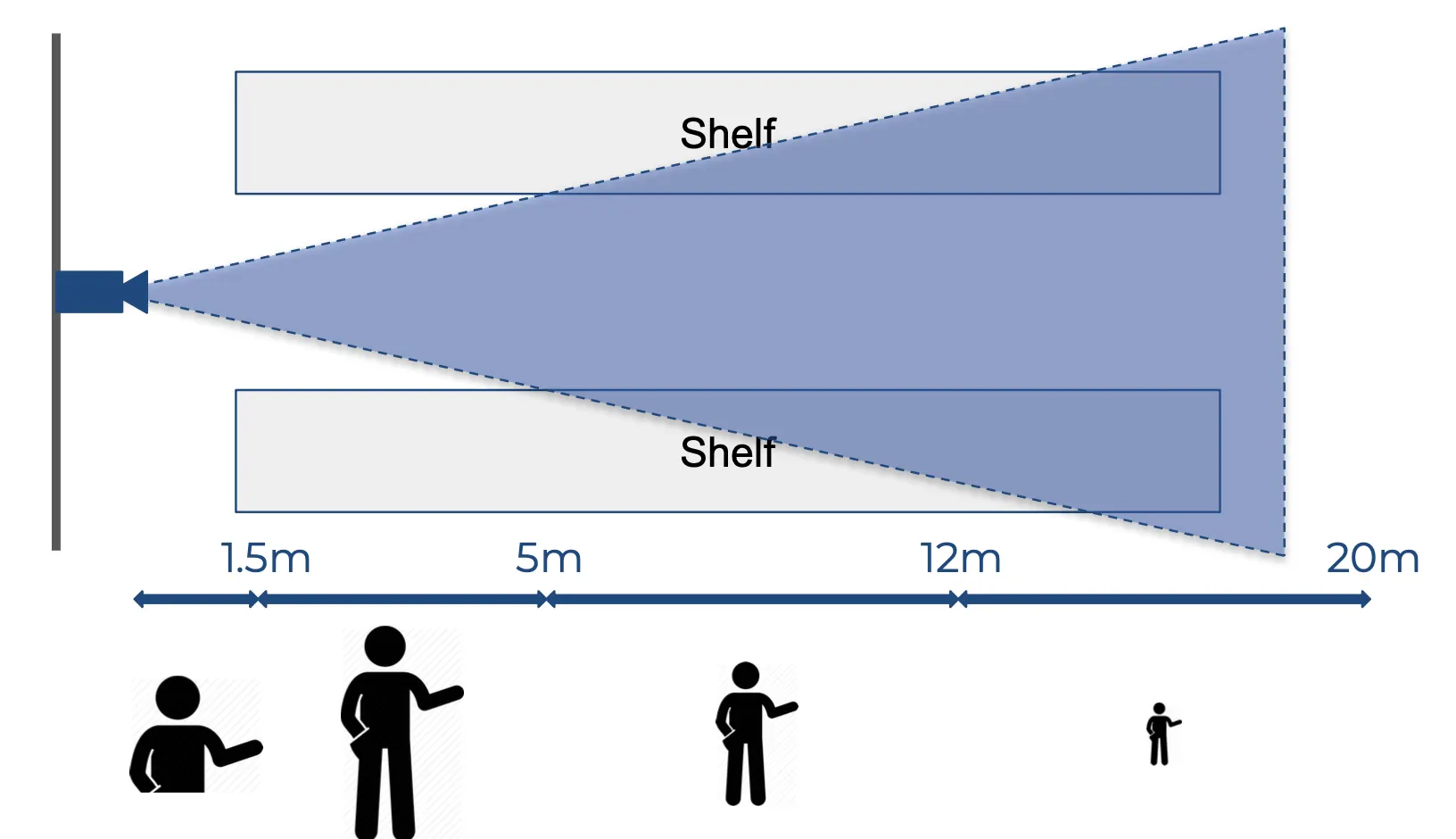
Pitfalls to avoid:
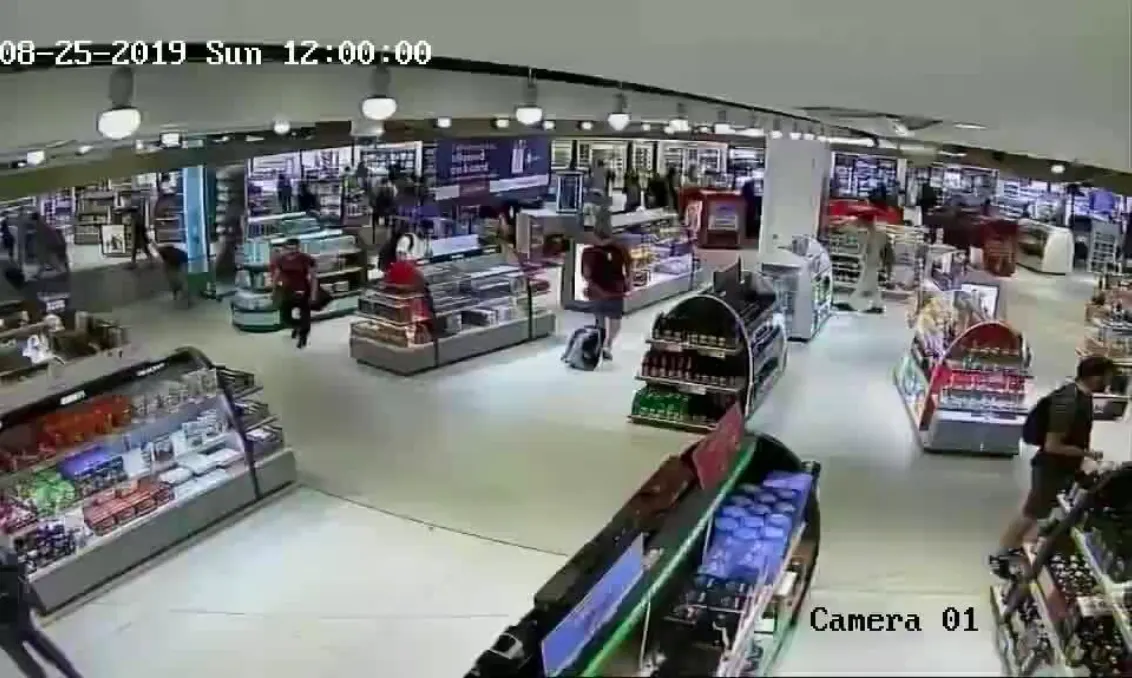
- If the field of view is too wide, the detection rate will drop: there will be higher chances of simultaneously having 30+ people in the field of view, thus creating more blind spots and places to hide from the camera.
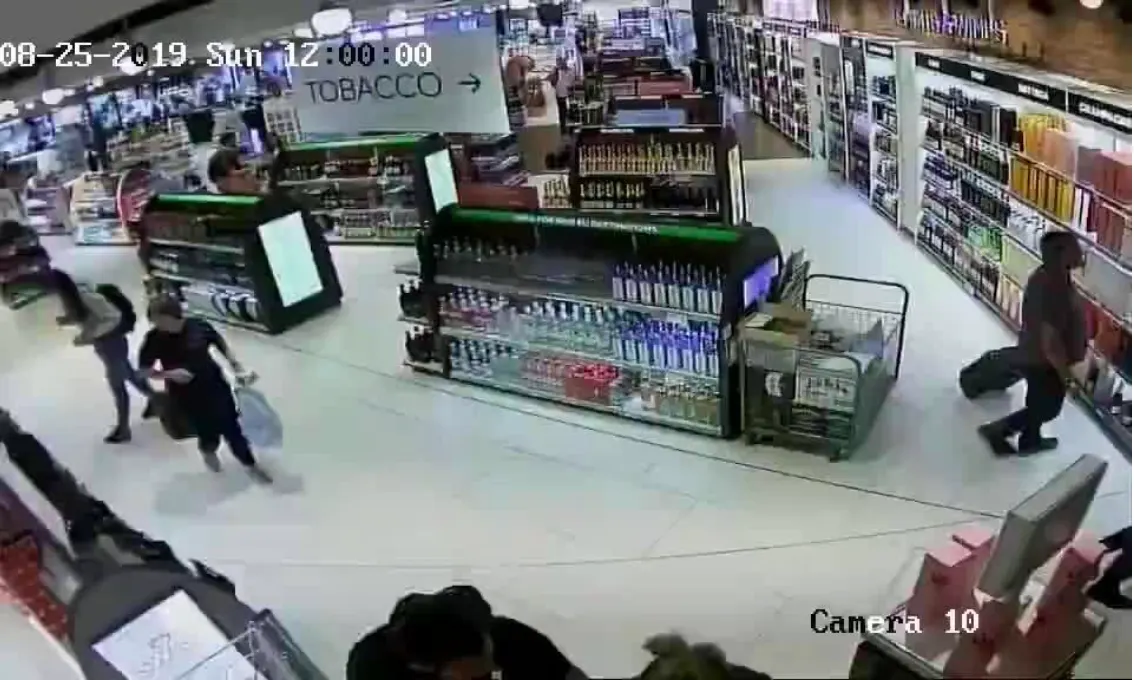
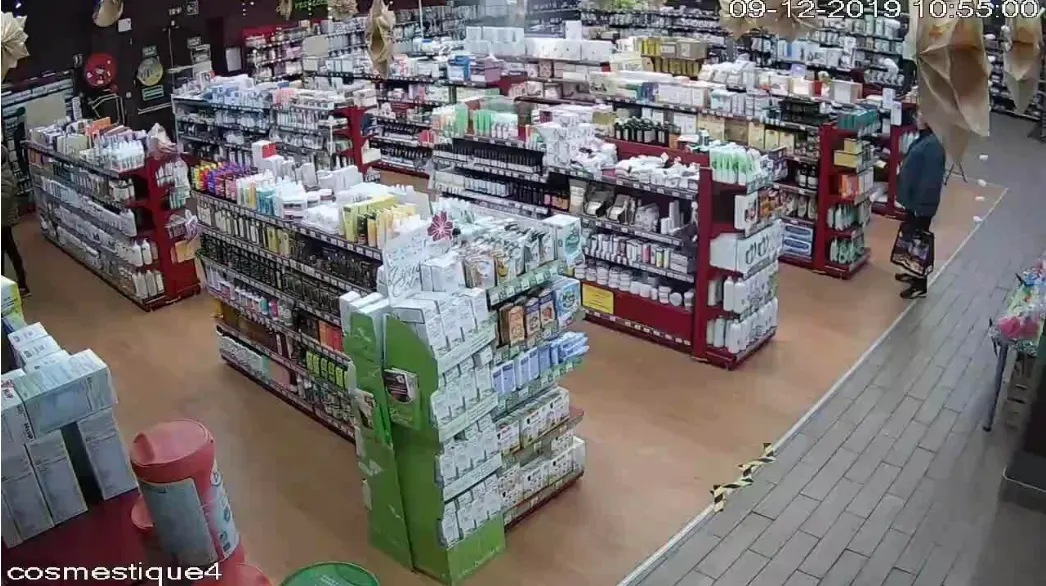
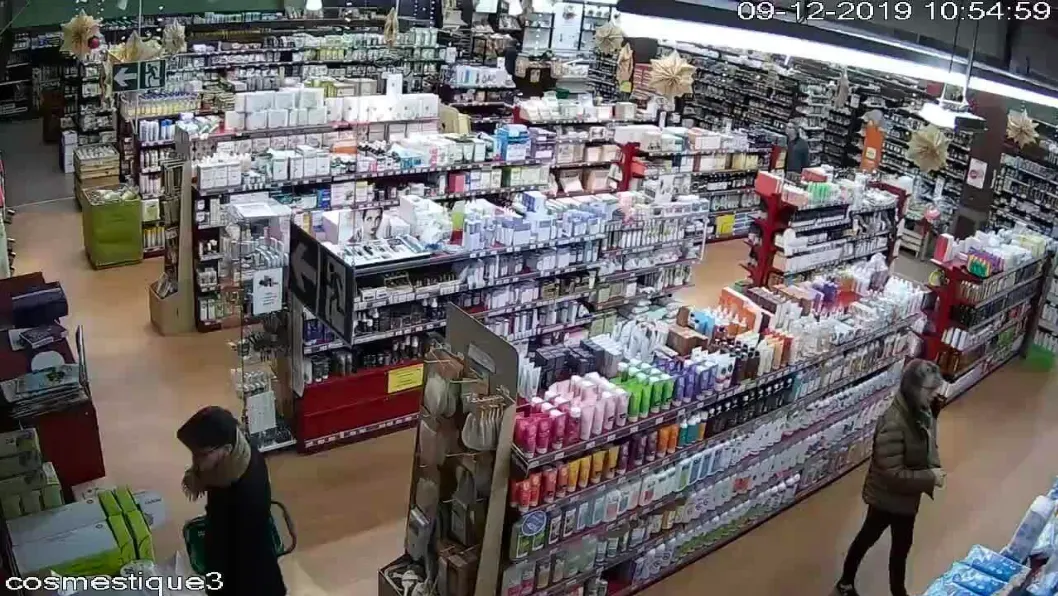
- Cameras pointing towards the side of blocks of shelves do not provide optimal angles to see the shop’s customers entirely and increase blind spots. This reduces Veesion’s detection rate.
- If the image quality is too low, the algorithm will also have trouble recognizing and detecting gestures. As a rule, if the human eye can easily see a suspicious gesture, so will Veesion. A lower image resolution will negatively impact the detection rate.
Note that cameras at checkout, entrance and exit tend to be less effective as they may send too many false alerts. For instance, Veesion could detect people adding items to their personal bags at checkout without understanding that people paid for the items. Veesion only detects the gesture and doesn’t know as such that this is not a theft.
As you configure Veesion, select the most appropriate cameras based on the retailer’s needs and our recommendations to maximize the detection rate.
What are the requirements to connect Veesion to my shop?
Once you’ve received the Veesion Server, you can install it in the shop.
You can do it in 3 steps detailed below:
- Connect the server to the Internet and the NVR/DVR 🔌
- Check the connection with the Remote Control 🎛️
- Send the information back to Veesion along with the technical checklist 📩
Once Veesion has received the information proving that the server is connected, you can onboard the customer on Telegram.
Step 1. How to connect the Veesion Server to a shop?
First, check that all the prerequisites are met. For more details, go to the section on Veesion’s requirements before setup.
The process depends on the shop’s network configuration. Follow the next questions to be redirected towards the right use case.
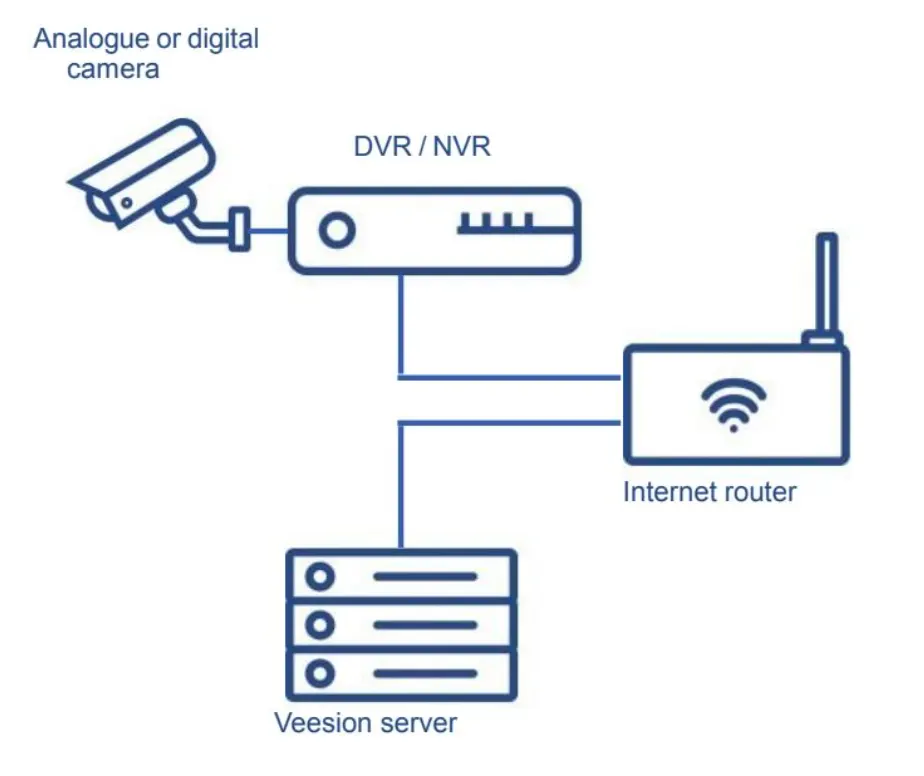
Is the NVR/DVR directly connected to the camera?
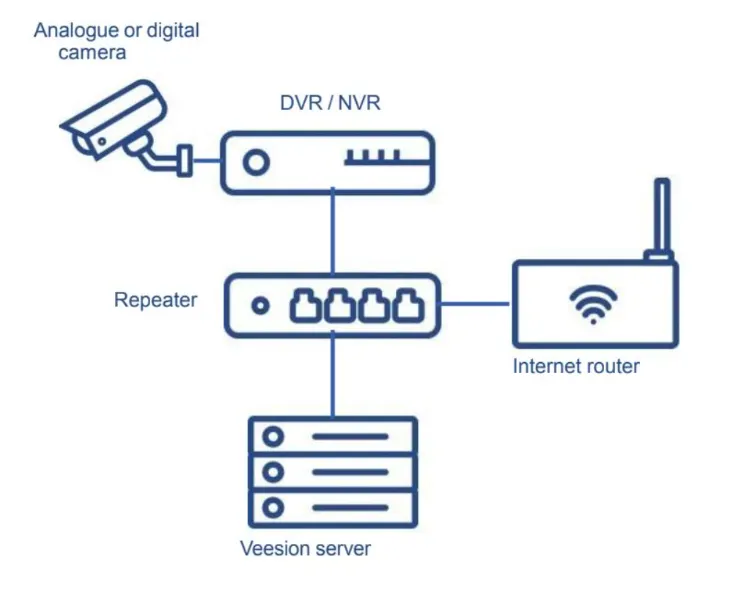
If yes, is the NVR/DVR connected the Internet router or is it connected to a switch?
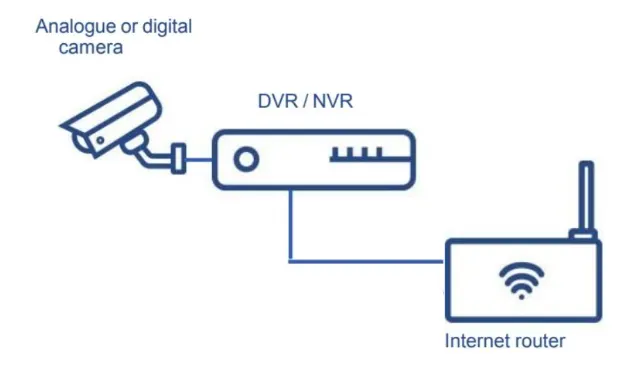
Case #1 - NVR/DVR directly connected to the Internet router via an Ethernet cable
⬇️
Connect directly the Veesion Server to the Internet router with one of the Ethernet cables sent in the package.
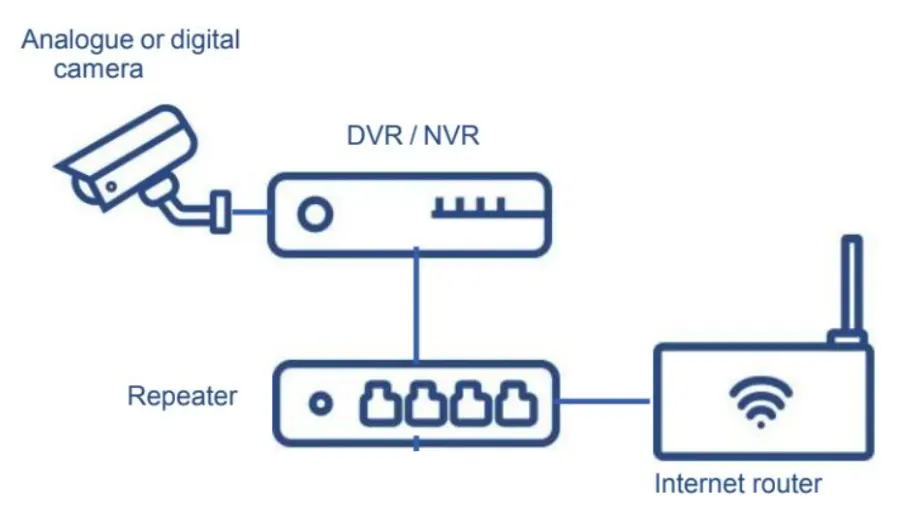
Case #2 - NVR/DVR connected to the Internet router via a switch and Ethernet cables
⬇️
Connect the Veesion Server to the switch with one of the Ethernet cables sent in the package.
If the camera isn’t directly connected to the NVR/DVR, is there a switch in between?
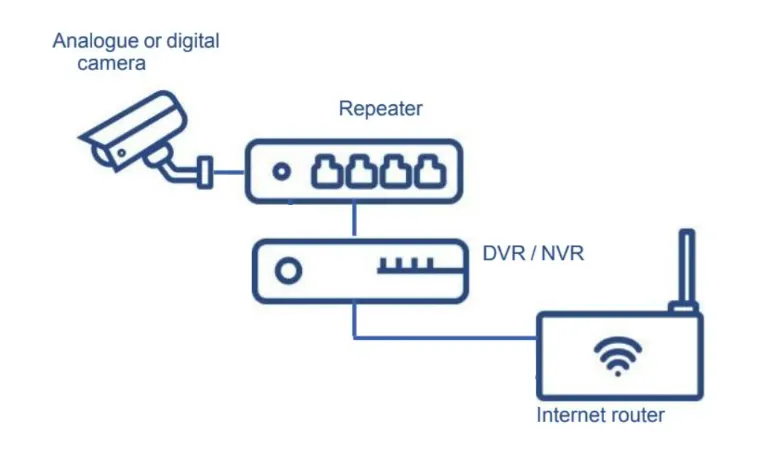
In this case, check if there is one or two ethernet ports available on the Veesion server.
- If there’s only one port available, get an ethernet to USB adapter and connect it between the camera switch and the server using one of the ethernet cable provided with the server.
- If there are two ports available, connect the ethernet cable directly between the Veesion server and the camera switch.
- Connect the other ethernet cable directly between the Veesion Server and the Internet router.
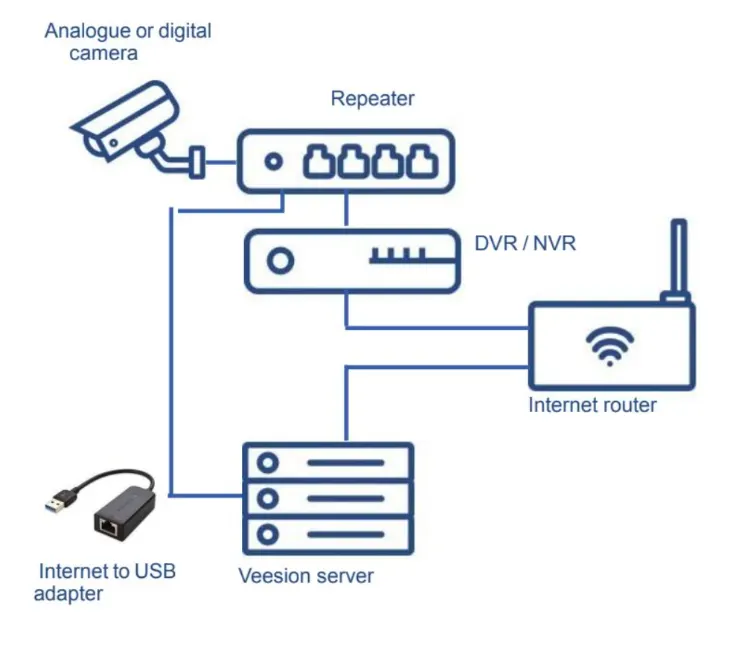
You can also use the Installation User Guide, provided to customers.
Or print this vertical, one-pager version.
Step 2. How to test the connection with the Remote Control?
Once the Server is connected, proceed to check the connection with the Remote Control.
What is the Remote Control?
The Remote Control is accessible via link that you should have received from the Veesion team during your onboarding. It enables you to check the connection between Veesion and the networks.
You can access Veesion’s Remote Control via any device (tablet, phone, computer). We recommend opening the page on Google Chrome to ensure optimal performance.
How to test the connection with the Remote Control?
This is a 3-step process that you should do once the Veesion Server has been connected to the NVR/DVR and the Internet.
You’ll need:
Mandatory
✅ Veesion’s Remote Control
✅ The Veesion’s Server unique name
✅ The brand of the DVR/NVR
✅ The login and password of the DVR/NVR
Optional
☑️ The DVR/NVR’s IP address
1/ Test the connection to the Server
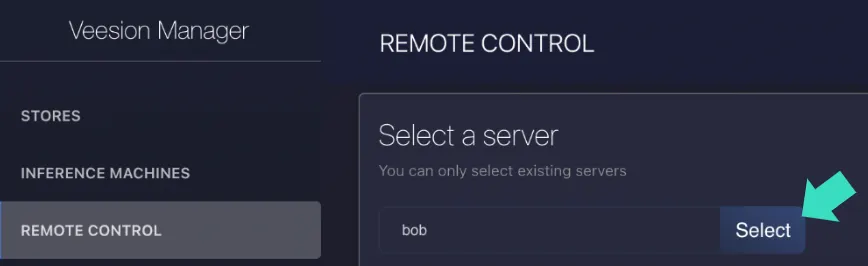
- Open the Remote Control
- Enter the Server’s unique name
- Click “Select”
- If you see 2 green popups on the top right corner of the screen, it means that the Server is reachable and connected to the Internet. You can move on to step 2.
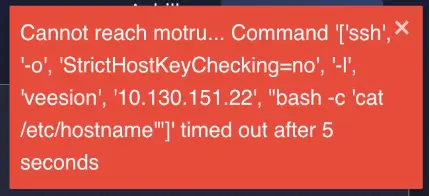
- If you see the following red popup, it means that the Server is not connected to the Internet. Check that the cables are connected to the Server. Don’t forget that, if the network is private, you’ll need to open new ports to enable the connection.
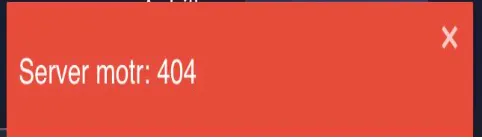
- If you see the red popup below, it means either that this is the wrong server name or the Internet page has expired. Enter the right name and/or refresh the page.
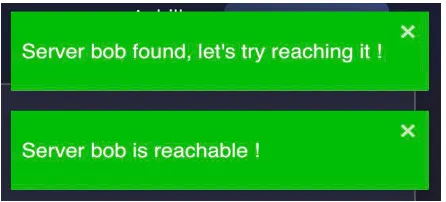
Move on to Step 2 once you have the 2 green popups. Otherwise, contact Veesion’s installation team to solve the issue.
2/ Scan the network
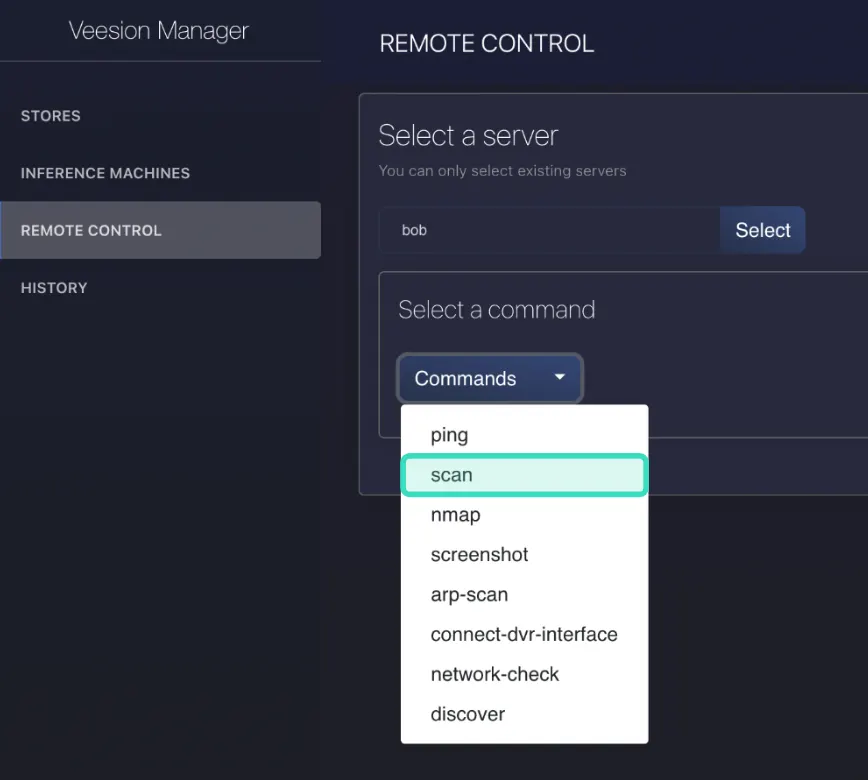
- Once you have selected the Server, click “Commands”, then “scan”. This command allows you to retrieve all devices connected to an open 554 port (RTSP).
- You should see a list of IP addresses in the layout Standard Output. Identify which one is the IP address of the DVR/NVR and copy it.
- If you already have the IP address of the DVR/NVR, you can skip this step and directly move on to Step 3.
3/ Generate screenshots
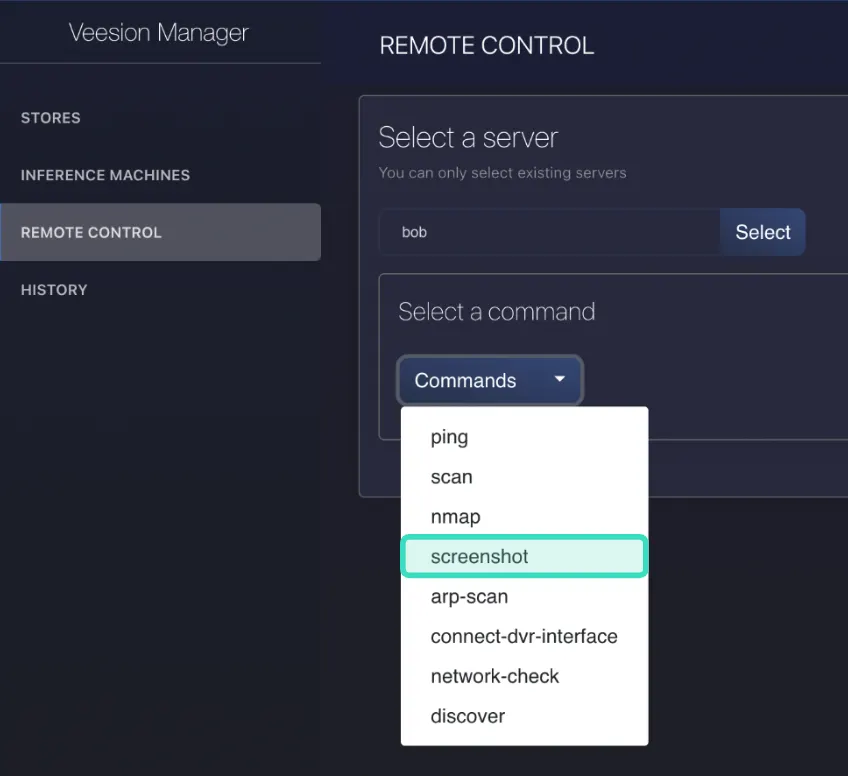
- Click “Commands”, then “screenshot”.
- Select the brand of the DVR/NVR. If the brand is not listed, follow the step 3A. Step 3A. The brand of the DVR/NVR doesn’t show up on the list In the “Brand” field, select “IP”.
- Enter the RTSP URL of the DVR/NVR.
- Follow the next steps.
- Fill in the login and password of the DVR/NVR.
- Select the field “Channel 2”
- Click “Test”.
- You should receive a screenshot.
Step 3. What do I need to send back to Veesion?
Once the Veesion Server is up and running and you have generated the screenshots, you need to send the technical checklist back to Veesion.
You can download it here before sending it to installation@veesion.com.
What if I lost connection to the Server or DVR right after the installation?
- If you lost the connection to the Server: Check that the Server is on
- Check that the cables are well connected
- If you lost the connection to the NVR/DVR: Check that the IP address is the right one and didn’t change
- Check that the login and password are the right ones
What if some requirements are missing?
Regarding the Internet access point:
- If the customer has a firewall or the network is private, it needs to be set with the correct rights to enable the Server access to the open ports for a dedicated IP address. Please, get in touch with the customer’s network provider to receive the IP address. Then Veesion will set it into the Server.
- If the customer has a proxy, the Veesion Server can’t be connected. Another source of Internet access needs to be set up, such as a 4G router.
- If the ports can’t be opened, you need to find another source of Internet access, such as a 4G router.
4. Onboarding customers on Telegram
Getting started with Telegram
Why do we need Telegram to use Veesion?
Once the Veesion Server is installed in your customer’s shop, it will start detecting suspicious gestures from their CCTV system. Each detected gesture is sent to the customer’s Telegram group as an alert, so they get notified and can act upon it.
This is the Telegram group that points the customer towards potential thefts happening in their shop.
For more information about Veesion, refer to section 1. Understanding Veesion.
How to download and access the application?
Here’s a complete guide that you can send your customer to download Telegram.
Customer FAQ
The Telegram application is available on
- Mobile - Telegram Messenger - on iOS and Android
- Computer - Telegram Desktop - compatible with Windows, macOS and Linux
- Tablet - Telegram Messenger
The customer can also choose to use Telegram Web, which works with any device via a browser.
Configuring the application for Veesion
1. Receiving Veesion’s alerts
Veesion sends alerts via a BOT as GIFs (a short, looped video sequence) showing the detected gesture in the Telegram group. To receive these alerts, you need to make sure the options “GIF” and “Video” are checked in the settings.
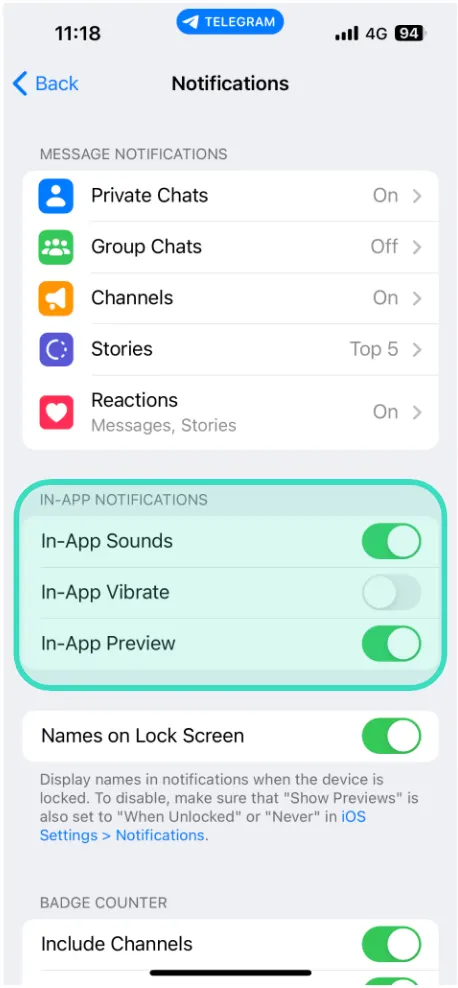
To avoid missing any alerts, we recommend to enable notifications from Telegram by activating the following options:
- Sound 🔊
- Vibrate 📳
- Banner/Preview 💬
⚠️ The "see more" videos Veesion sends expire after 7 days: customers will only get access to the links during this period. However, Veesion stores the alerts' data for 30 days as per regulation regarding CCTV recordings.
📌
Ensure that the “GIF” and “Videos” options are selected to receive the alerts.
Enable sound and notifications on your device to make sure customers don’t miss any alerts!
How to select these options in Telegram?
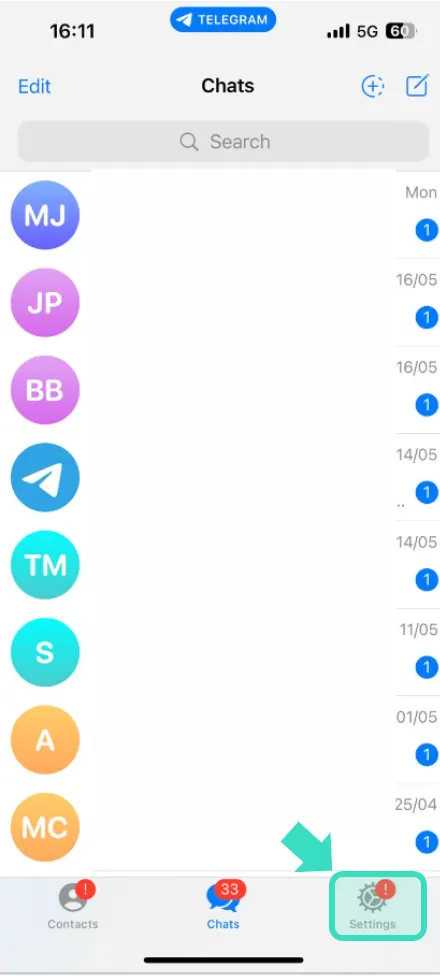
- Go to Telegram’s Settings
- Select Data and Storage
- Scroll and make sure the toggles for GIFs and Videos are on. It should be in the section “Autoplay Media”.
How to enable notifications?
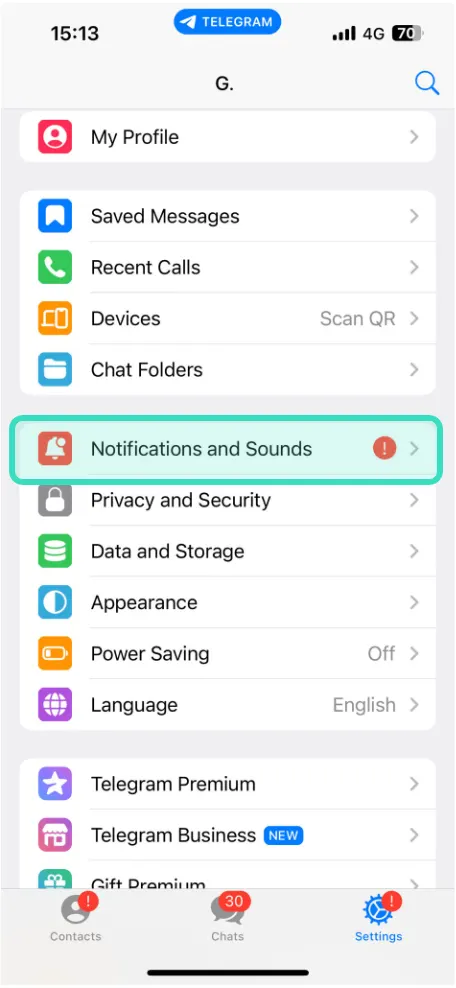
- Open Telegram and go to the Settings tab.
- Choose the "Notification and sounds" menu.
How to disable notifications?
You can turn off group notifications in the app settings.
- Go to Telegram’s Settings at the bottom right of the application’s main screen.
- Go to the "Notification and sounds" menu of your app settings.
- Uncheck the options you want in the section “In-App Notifications”.
2. Securing access to Telegram
The following settings are recommended to ensure restricted access to the data Veesion sends. These alerts are sensitive data and shouldn’t be accessible to anyone.
Control who can access the application from a specific device by adding an access code
- This option comes in as particularly useful for corporate devices and teams with regular rotations.
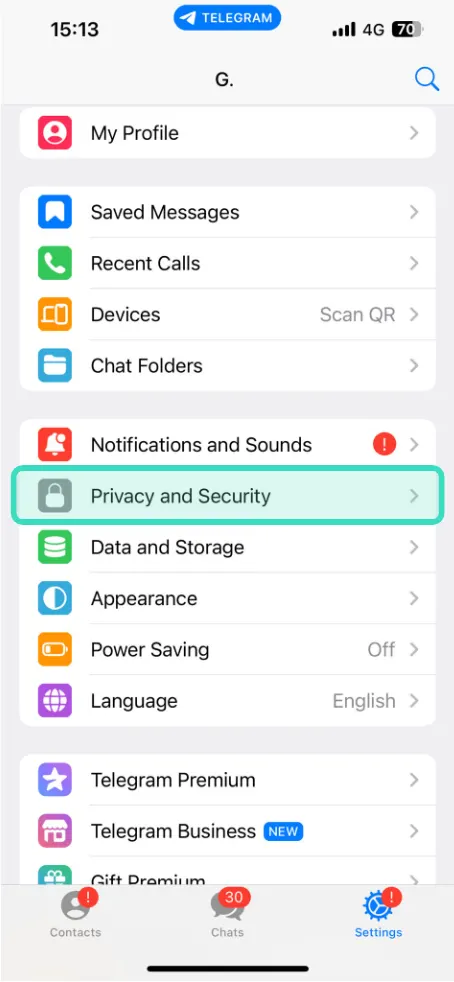
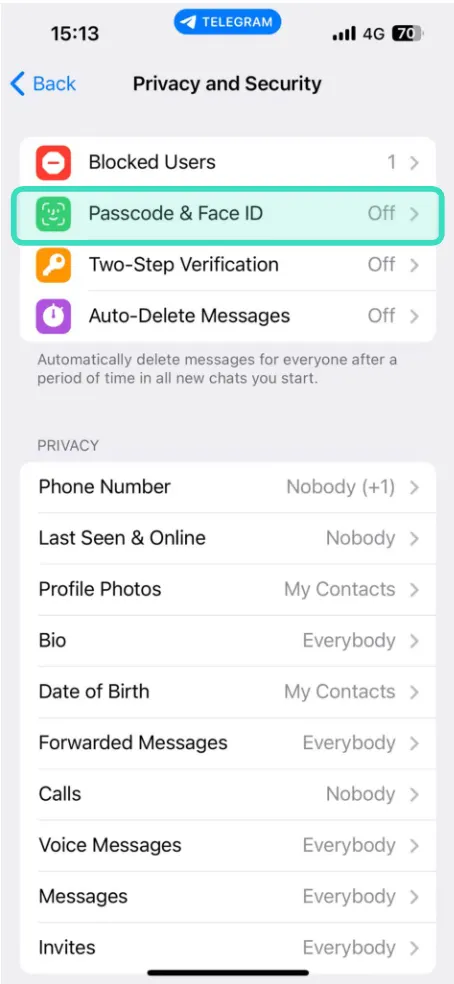
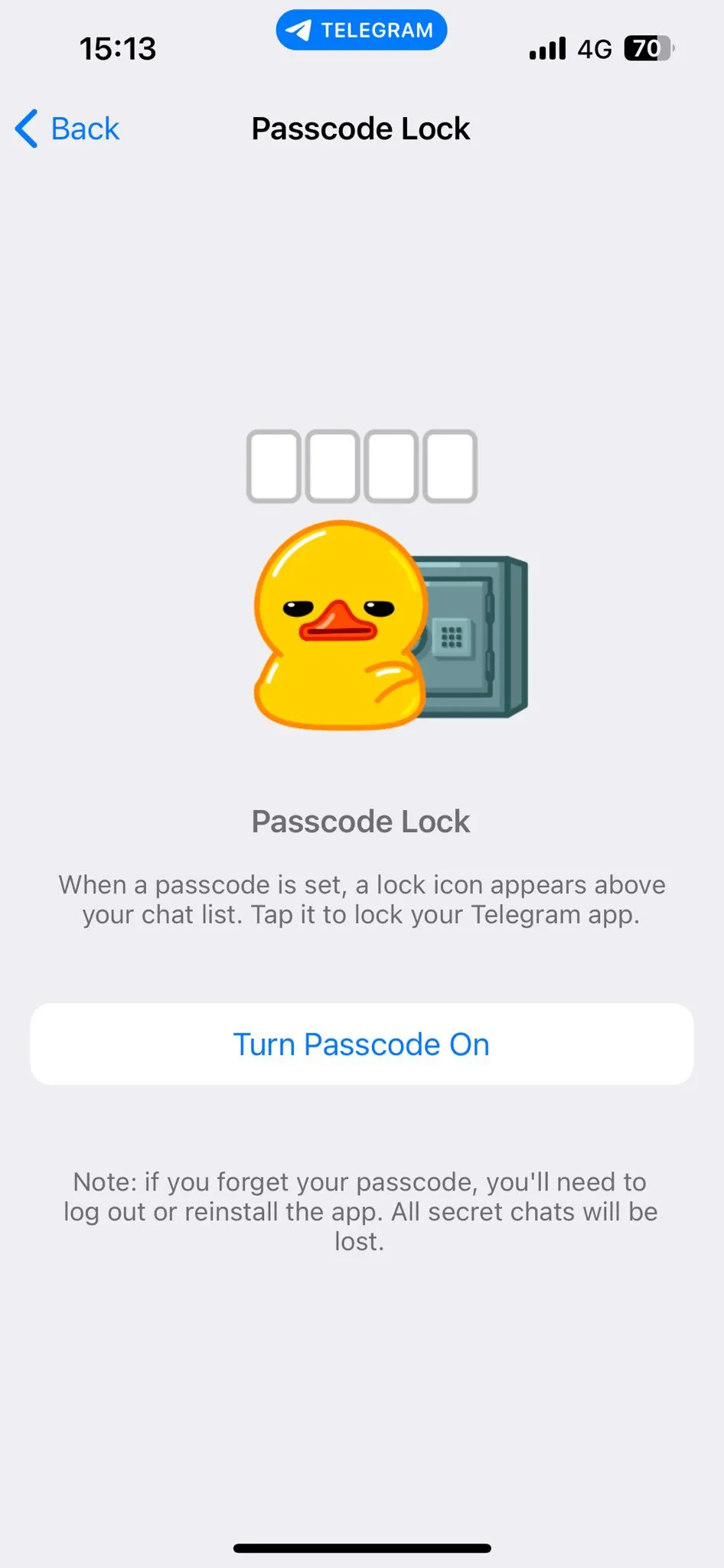
- Go to Settings > Privacy and Security > Passcode & Face ID
- You can set a Passcode Lock and click Turn Passcode On.
Control who can connect to the application from a new device by adding the Dual Authentification
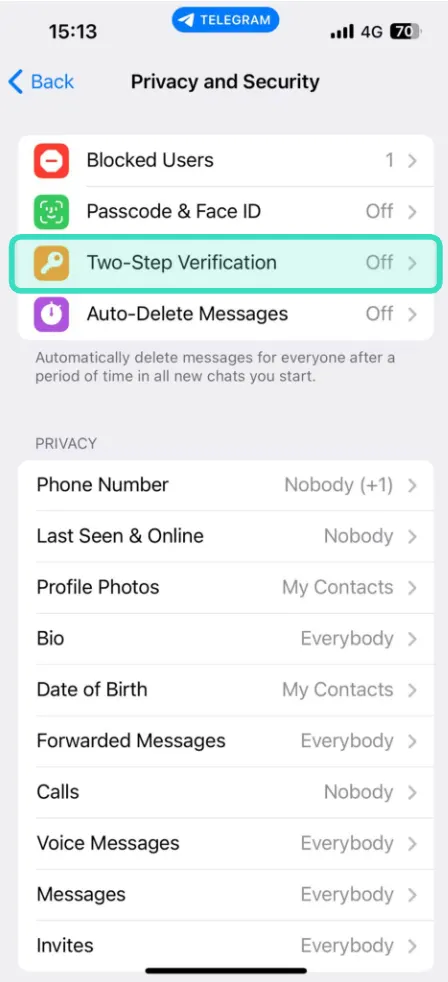
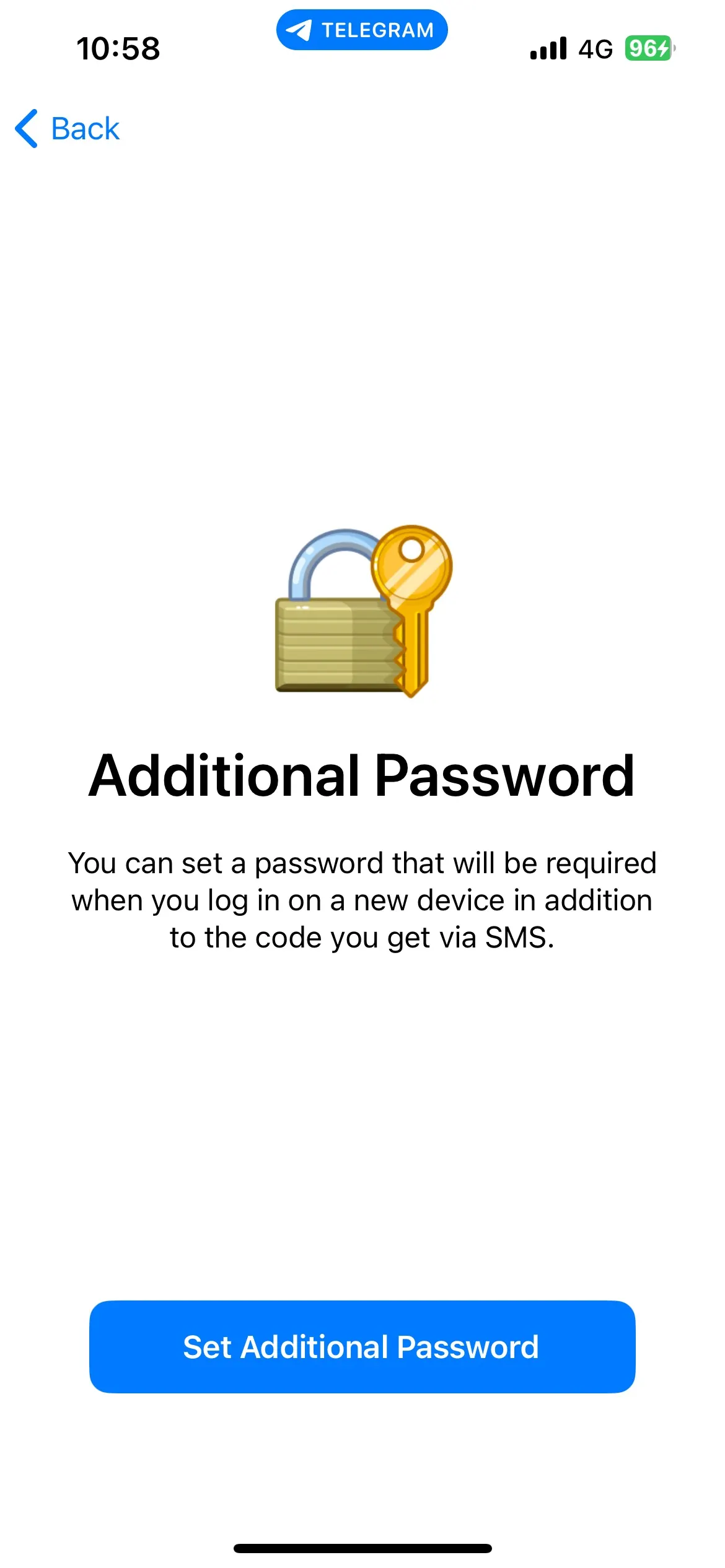
- You can configure an additional password to verify the connection of a new device.
- Go to Settings > Privacy and Security > Two-Step Verification > Set Additional Password
- Enter a password and confirm it.
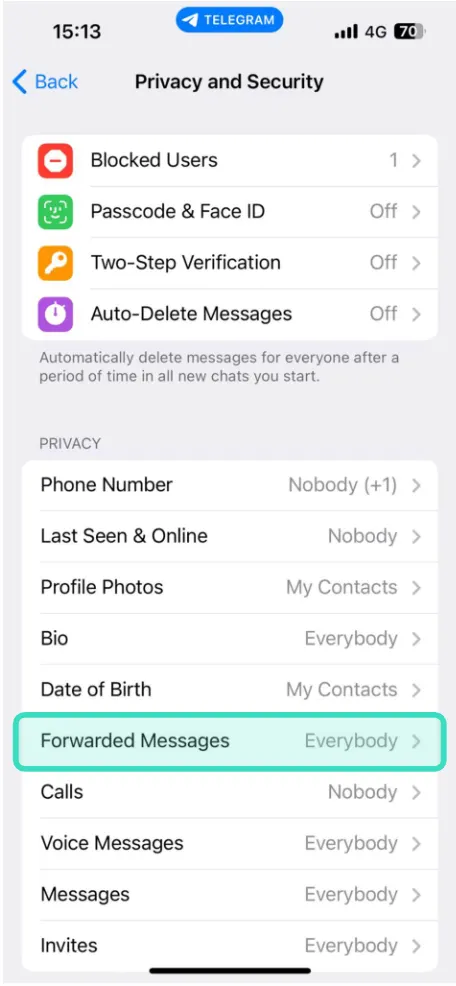
Avoid privacy issues by preventing users from sharing the alerts
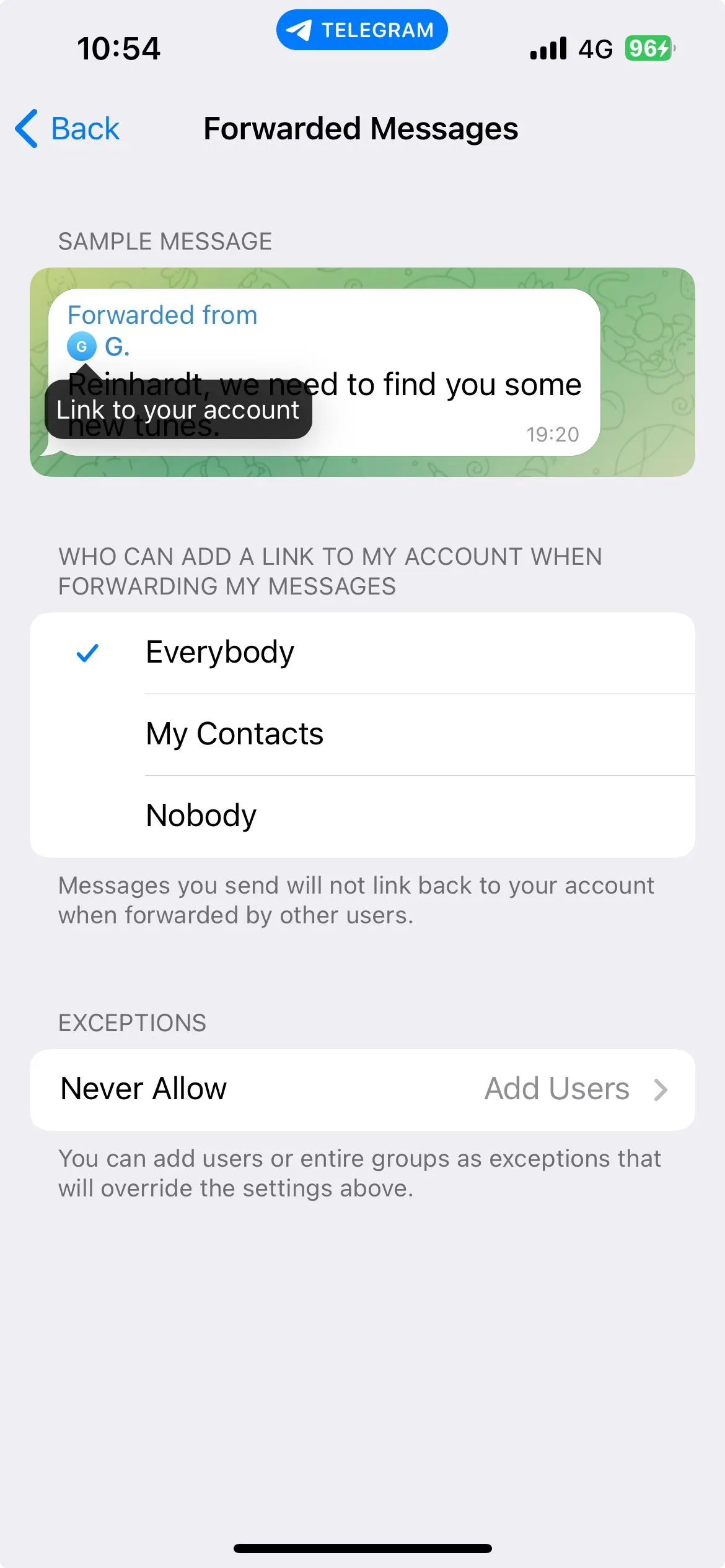
- Go to Settings > Privacy and Security > Forwarded Messages.
- You can set the option “Forwarded messages” from “Everybody” to “Nobody”. By default, this option is set to “Everybody”.
- This will prevent users from sharing the links of the videos.
Ease usage for team members working at checkout in parallel
- The option “Automatic locking” is particularly useful for the staff working at checkouts, so they can qualify alerts efficiently without wasting time unlocking the device.
- Program automatic locking from a device for one minute, five minutes, one hour or five hours.
- Make sure the device is close to a socket so that it can be charged constantly. Long-term unlocking requires more power.
3. Managing group members
Once you’ve set up your Telegram group, you can add the team members you need. We also specify here how to remove or block a member should you need to.
Adding a group member
There are 2 ways of adding a new member to the group:
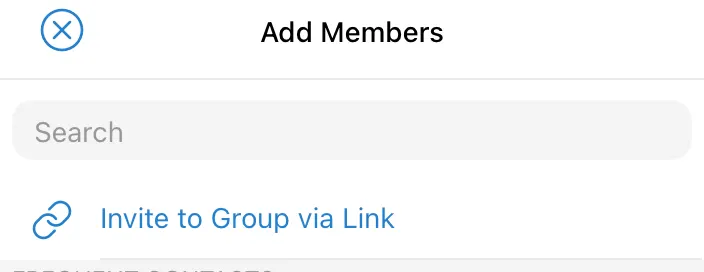
- Method #1: Sharing an invitation link Open the group menu. To open the group menu, just click on the name of the group, at the top of the conversation.
- In the display, click on Add members.
- Then select the Invite with a link option.
- The following page will allow you to copy the link and share it with your colleagues.
- Method #2: From your contacts If the employee is already in your contacts, you can add them directly by typing their name in the search tab.

In both cases, the employee will need to have installed the application first.
Removing a group member
If you want to remove a group member, you need to contact Veesion. You can do it either by sending an email to support@veesion.com or by sending us directly a message in the Telegram group.
Blocking a group member
You can block a member from the group menu by clicking on Edit in the top right-hand corner, in the Banned users section.
Using Telegram with Veesion
How to configure Veesion for my shop?
After receiving the link to your Telegram group, you customer will be either trained by Veesion's Customer Success Team or by yourself. Configuration needs to take place at this step, along with Veesion's teams for the shop's settings.
The configuration includes:
- Adding the shop’s opening hours to activate Veesion during these hours only.
- Deactivating some optional gestures. For instance, if a lot of the shop's customers use their own bags, you should deactivate the alert “Product in Suspicious Bag”. Otherwise, your customer will receive an alert each time a customer puts an item in his/her bag, although this is not a particularly suspicious gesture in this shop.
- Identifying the most and least suspicious aisles in the shop.
- Confirming the cameras used by Veesion. Not all cameras are relevant for the use of Veesion as some of them may send too many alerts or don’t match Veesion’s performance requirements. To understand how Veesion works, refer to the section “1. Understanding Veesion”.
These configurations can only be done by Veesion’s teams and are important to make sure your customers receive the right amount of alerts, on the most relevant parts of your shop. They contribute to setting the right level of sensitivity in the system.
Note that the onboarding phase lasts 3 months. During this time you should organize follow-up calls with your customers to help fine-tune the system or clarify any doubts they might have.
How to qualify alerts on Telegram?
Each suspicious gesture detected by Veesion will be sent as an alert to the Telegram group. For each alert, there are 4 buttons to help better analyze it and give feedback on what happened. Your customer needs to select one of the first 3 buttons to qualify the alert.
👉 Qualifying the alerts on time helps keep track of Veesion’s impact and how much your customer has been able to save by avoiding shoplifting 💰
On each alert sent, you can see 4 buttons below the GIF:
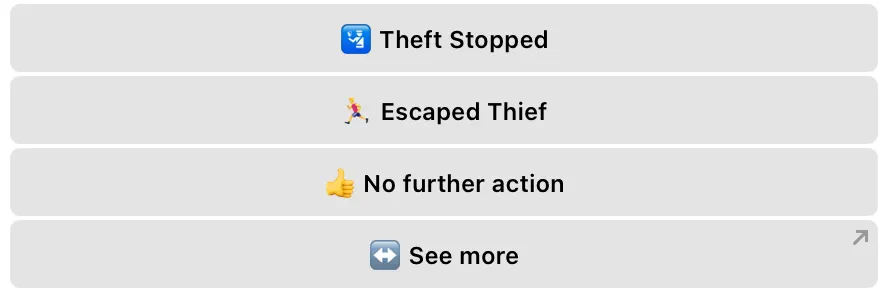
The first 3 buttons inform on the performance of the alerts received. The fourth one helps better analyze the alert. They have to click on one of the first 3 buttons to qualify an alert.
- When they managed to stop the suspect, they need to click the button “🛂 Theft Stopped” and enter the amount of the theft.
- When they didn’t manage to stop the suspect, and it's actual shoplifting, meaning that the person left with the stolen item or dumped it, they need to click the button “🏃♂️ Escaped Thief”.
- When the gesture looks suspicious but the customer eventually pays for the item, or when the item is a personal belonging, they need to click the button “👍 No Further Action”. Note that clicking this button won’t make Veesion detect fewer gestures or send fewer alerts. It only means that this incident was not a theft, but they will keep receiving these types of alerts.
- When they want to see more than the short GIF or in higher quality, they need to click the button “↔️ See more”. This is particularly useful to validate whether an alert is legitimate or not.
As a reminder, here’s a one-page guide for your customers to print and display in their shop.
Common questions when using Veesion
Regarding the gestures
What is considered a suspicious bag?
The category “Suspicious Bags” groups bags of small to medium size carried on the shoulder and held close to the body, like tote bags. But it can also include objects that resemble bags due to the angles and visibility on the camera, for example, hats, helmets, etc.

Suspicious bags examples
For more information about the detected gestures, refer to the section "What gestures does Veesion detect?".
What is the difference between a suspicious bag and a shopping bag?
Veesion differentiates suspicious bags from shopping bags.
- Shopping bags are larger than suspicious bags and are held by hand. They include paper bags and plastic bags, such as the ones used in bakery sections, as well as personal shopping carts. Examples of shopping bags
- Suspicious bags are smaller and carried on the shoulder or close to the body. They can also include objects that resemble bags due to the angles and visibility on the camera, for example, hats, helmets, etc. Examples of suspicious bags


For more information about suspicious bags, please refer to the sections “What is considered a suspicious bag?” and "What gestures does Veesion detect?".
What is considered “very suspicious”?
The category called “Very Suspicious” includes two types of gestures:
- Putting an item inside a backpack, purse, or fanny pack (waist bag)
- Hiding an item inside clothes
This category is considered as the one with the highest chance of being thefts. It’s always active and can’t be deactivated as it’s the most helpful for retailers.
For more information about the detected gestures, refer to the section "What gestures does Veesion detect?".
Is it possible to add a new gesture?
As of today, it is not possible to add a new gesture from one day to another.
Adding a gesture requires training the AI algorithm to recognize and detect it. That means analyzing a very large amount of data in the form of good-quality videos of this specific gesture. This process demands some time and resources and needs to be planned.
However, we are constantly making Veesion evolve and plan to add new gestures in the future. If you have any suggestions, please send them to the support team: support@veesion.com. We will add it to our features request list, which is constantly reviewed by our product and development teams.
Is it possible to deactivate a gesture?
All gestures except the ones from the category “Very Suspicious “ can be activated or deactivated. They can be deactivated for the whole shop or a specific camera.
Below is the comprehensive list of gestures that can be deactivated:
- Slightly Suspicious
- Gestures into Body
- Product in Stroller
- Product in Suspicious Bag
- Product in Shopping Bag
Changing these settings requires the assistance of our support team. If you’d like to deactivate a gesture, please contact the support team via email at: support@veesion.com or by filling out the following form: https://veesion.com/support/.
Note that your customer won’t be charged for such a change as long as it’s on the current shop’s scope with the same number of analyzed cameras.
How long does it take to receive an alert?
It takes between 20 and 50 seconds for an alert to be received on a device, depending on the category of gesture, the device used and the network coverage.
Each time a gesture is detected, the algorithm registers a 30-second clip. This clip will be received as a GIF (a short looped sequence of around 5 seconds) on the Telegram group. This is what is called the alert. It can take between 20 to 50 seconds between the moment the clip ends and the moment the alert is received.
We recommend ensuring that devices have optimal coverage in the shop areas where they're been used. Poor coverage or unstable network can delay notification delivery.
Can the system recognize if a thief comes back?
The system aims at recognizing specific gestures, regardless of the person's identity. It is, as of today, forbidden to proceed to facial recognition in many countries.
Best practices and tips
⚠️
Do not run “fake thefts” tests to see if Veesion works well.
Doing a test and mimicking a theft most of the times result in unrealistic or unnatural gestures, that the system won’t recognize as suspicious.
For instance: grabbing an item and leaving the screen without concealing it, or concealing it and placing it back on the shelf shortly after.
If you feel something isn’t working as it should, go to the section “6. Help & Assistance” to help you solve the issue.
On Telegram
- Customers can use the chat to communicate with their colleagues or ask for assistance.
- They can also use the “attach file” button to add documents such as the picture of the printed ticket for the stolen item.
- Make sure there's optimal coverage in the shop areas where the devices are used.
On camera positioning
The camera’s position influences Veesion’s performance. For the AI algorithm on which Veesion relies to be the most effective, the camera must meet the following criteria:
- Centered on one aisle only
- Optimal length between the person and the camera: from 1.5 to 12m
- Optimal height of the camera: 1.8 to 3.8m
As a general rule, the best cameras for Veesion are the ones filming a profile around 12m, centered on an aisle.
Pitfalls to avoid:
- If the field of view is too wide, the detection rate will drop: there will be higher chances of simultaneously having 30+ people in the field of view, thus creating more blind spots and places to hide from the camera.
- Cameras pointing towards the side of blocks of shelves do not provide optimal angles to see the shop’s customers entirely and increase blind spots. This reduces Veesion’s detection rate.
- If the image quality is too low, the algorithm will also have trouble recognizing and detecting gestures. As a rule, if the human eye can easily see a suspicious gesture, so will Veesion. A lower image resolution will negatively impact the detection rate.
As you configure Veesion, select the most appropriate cameras based on the retailer's needs and our recommendations to maximize the detection rate.
How to manage teams and access the group?
If you want to add, remove or block a group member, refer directly to the following section “Managing group members”.
5. Helping and assisting customers
My customer has undetected thefts
Why wasn’t a theft detected?
Here are some questions to help you analyze and understand why a theft wasn’t detected. The situation may be linked to a technical issue.
If the server and DVR were connected, the camera activated and the gesture part of the ones Veesion can detect, please send an email to support@veesion.com with the time range, date, and camera of the incident. You can also add a video or image as an attachment.
Note that AI algorithms aren’t 100% reliable and can still miss some gestures based on camera positioning, or the continuous development of the technology. You can optimize Veesion’s detection by ensuring that the cameras on which it operates are well positioned. For more information on camera positioning, go to the section “🎦 On camera positioning”.
Were the server and DVR connected?
A visual check is enough to confirm that the connection is correct.
Look at the Ethernet port at the back of the Server.
If there are two lights, an orange one and a green one, it means that the connection works.
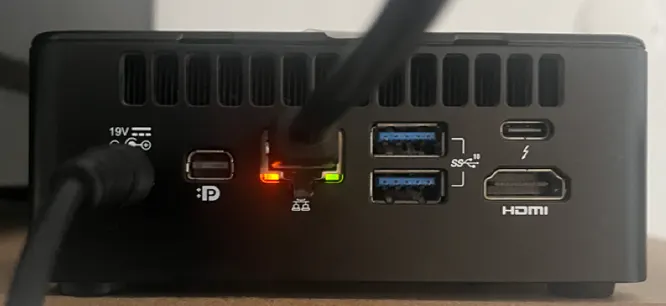
If there's a red light, it means that the connection is malfunctioning.
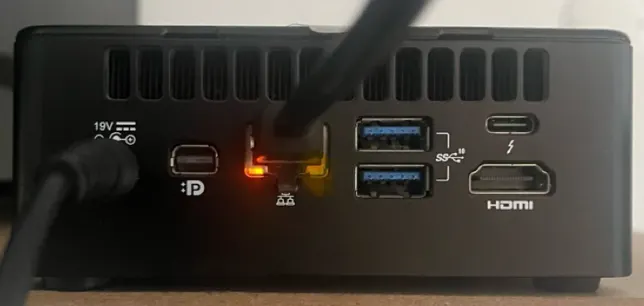
If the server and DVR aren’t connected, Veesion can’t send alerts
Is the camera used by Veesion?
By default, some cameras are not analyzed unless it has been specified otherwise. For instance, cameras covering the exit, entrance and checkouts are generally not analyzed to avoid unnecessary alerts linked to customer movements while they are putting away products, handling their wallet, phones, etc. If you don’t have it already, ask support for the list of active cameras in your shop to the following email address: support@veesion.com. You can then check if Veesion analyzes the images of this camera.
If the theft was visible on a camera where Veesion hadn’t been activated, Veesion couldn’t, by definition, detect it.
Please, contact the support via email (support@veesion.com) to discuss if an activation would be relevant.
Was the type of gesture one of the gestures detected by Veesion?
Some gestures escape detection if they do not appear in the sequence, even though the human eye might judge them as suspicious or indicate that the person is about to steal. Veesion only detects specific types of gestures that the algorithms have been trained to recognize as suspicious.
For more information about detected gestures, refer to the section “Which gestures does Veesion detect?”.
You can also activate or deactivate some specific gestures with the support team. Check which ones were activated while the theft happened by directly asking the support team at support@veesion.com.
Why didn’t my customer receive an alert for a gesture that Veesion detects?
First, please ensure that the gesture belongs to the categories of gestures detected by Veesion by referring to the section “Which gestures does Veesion detect?”.
If the gesture did belong to the categories, this could be explained by diverse factors:
- The gesture was not visible on the camera(s).
- The gesture was visible on the camera(s) but the movement does not completely match the categories of gestures analyzed.
- The camera that caught the gesture is not active on Veesion.
- The camera is active, but the connection between the camera and Veesion failed (see the section "Have you received a message informing we are having trouble connecting to your cameras?”)
The Veesion algorithm is based on the analysis of pixels in a succession of frames to identify movement on a video. It does not have a 100% detection rate. For more details about how Veesion works, please refer to the section 1. Understanding Veesion.
If you believe that none of the cases listed above is true, and the gesture should have been detected, please send the following information to the support team (support@veesion.com) so we can analyze the sequence and make the necessary adjustments if necessary:
- Date and time of the incident (it is important to have a time range so we are able to find the sequence).
- Camera where the gesture was visible (please provide the channel number instead of the camera name, as we might not have this information if it was not provided beforehand).
- Description of the gesture.
The Veesion team will get in touch with you shortly.
My customer has an issue with the alerts
My customer didn’t receive any alerts…
… in a couple of hours
If there hasn’t been any alerts in a couple of hours, it is possible that the traffic is slow in the store, or that up until now no suspicious gesture has been detected. Please ask your customer to wait. They should start receiving alerts in the coming hours. If as the day passes, they still haven’t received any alerts, please follow the steps listed in the section "I haven’t received any alerts today”.
… today
If after a couple of hours, your customer still hasn’t received any alerts, please verify if any of the following cases are true:
If you (or your customer) have not received any message informing about a possible technical issue, the server is turned on, and your customer is still not receiving any alerts, please contact the support team by email or phone.
Did you receive a message informing we lost the connection to the server?
If you (or your customer) have received this message, it means that we don’t have access to the server. As a result, the system is offline, and we are not able to analyze your cameras.
Some of the possible causes could be:
- A power outage caused the server to go off.
- There is no internet in the store.
- There is internet in the store however, the server is not connected to the internet network.
- A manipulation took place on the network installation that could have led to the server being disconnected/turned off.
For any of the listed reasons, you can follow the instructions shown on the video sent (link here):
- Make sure the server is connected correctly (a cable going to the power outlet, and another cable going to the same network where the cameras are connected, this could be either a switch, the router or the DVR directly, depending on your specific case)
- Reboot the server, by unplugging it and then plugging it back after about 10 seconds.
This will solve the issue in most of the cases.
If you’ve done these steps and the server is still not turning on, please contact the support team by email or phone.
If the server is now on, please wait, you should start receiving alerts in the coming hours. Otherwise, please contact the support team by email or phone.
Did you receive a message informing we are having trouble connecting to your cameras?
If you (or your customer) have received this message, it means that we have access to the server however, we are not able to connect to one or multiple cameras. As a result, these cameras are not being analyzed.
Some of the possible causes could be:
- A power outage caused the DVR (video recorder) to change IP address.
- The Server and the DVR are not connected to the same internet network.
- The Server and the DVR are connected to the same internet network, however, the necessary RTSP ports are blocked.
- The User and/or Password used to connect to the DVR have changed.
In case of loss of connections to your cameras, please verify first that everything is in order: make sure that you can see all of your cameras, that the DVR and the server are connected correctly, and that there are no loose cables.
If this is the case, please contact the support team by email or phone, be sure to have the following information at hand:
- IP address of the DVR
- User and Password used to connect to the DVR.
Is the server turned off?
- If you have not received any messages, a good practice is to check whether the server is turned on. You should see a blinking or steady light on the front of the server.
- If you don’t see any light, try pressing the power button on the front of the server, the light should come on right after that.
- Once the server is on, please wait, you should start receiving alerts in the coming hours. If not, please contact the support team by email or phone.
My customer didn’t receive any alerts in a while, can I do a test to make sure the system is working?
If your customer hasn’t received any alerts in a short period, please refer to the section: My customer didn’t receive any alerts…
We understand that your first reaction could be to try to make a test by faking a theft to confirm whether the system is working. However, we strongly advise against it as it would likely be counterproductive.
First, there is no guarantee that the system is operational at the moment.
Second, doing a test and faking a theft most of the time result in unrealistic or unnatural gestures, that the system won’t recognize as suspicious. For instance: grabbing an item and leaving the screen without concealing it, or concealing it and placing it back on the shelf shortly after.
Please wait for the confirmation of the team that the service is back online or request the assistance of the support team, if you believe the system is not working correctly even after it was confirmed it was back online.
My customer is receiving fewer alerts than usual
First, let’s check the usual amount of alerts your customer receives.
- Get the last 3 or 4 weekly recap messages
- Compare the number of alerts received from one week to another to get an estimate of the average number of received alerts.
If you notice a significant decrease, meaning 50% to 60% fewer alerts than usual, this could be due to:
- A request to deactivate a category of detected gestures
- A request to deactivate a camera
- A request to cover some sections of a particular camera to reduce false alerts
- A report of a significant number of irrelevant alerts that led to a recalibration of the cameras’ sensitivity
- A decrease in traffic in the store
If there have not been any changes to the system settings, and you don’t see any particular reason that could cause this significant decrease in the alerts, please contact the support team by mail or phone to have a more in-depth diagnosis.
My customer only receives alerts from people using bags
Gestures from people using shopping bags, tote bags, or personal bags are some of the most common gestures in a store. This is why it is not abnormal that the number of alerts triggered by these gestures should be significantly higher than the other gestures.
Before contacting support, please follow these steps:
- Browse previous alerts to see the last time they received an alert triggered by a different type of gesture, like “Gesture into Body”, “Very Suspicious”, or “Slightly Suspicious”. It is possible that they have received some of those alerts recently, but that they are going unnoticed due to the higher number of alerts triggered by the alerts about bags.
- Make sure none of the other gestures has been deactivated. If this is the case, it would mean that the suspicious bags and shopping bags gestures are just some of the few gestures active.
If none of the listed cases is true, and they are receiving only alerts of people using bags, please contact the support team by mail or phone to have a more in-depth diagnosis.
My customer receives too many alerts
If your customer receives too many irrelevant alerts, Veesion can deactivate some gestures or adjust the cameras’ settings to solve the issue.
- First, investigate with the customer the type of gestures involved in the issue and the camera. Ask for examples and screenshots, and be as specific as possible.
- Then, fill in this form to send the information to Veesion: https://forms.gle/uYHwxykg7mwoSYdw5. Don’t hesitate to add as many details as you can. The more precise the request is, the faster it is solved.
Veesion will contact you shortly after, via email if the issue has been solved or via phone if it requires more investigation.
Why doesn’t my customer receive a lot of alerts when there’s a lot of movement in the store?
Having a lot of movement in the store does not necessarily correlate with a high number of suspicious gestures happening. The alerts are triggered when specific categories of gestures are detected. If none of these movements are detected, even with a lot of traffic and movement in the store, there will be no alerts.
If you feel that the number of alerts received is significantly lower than it should be, check the section “My customer is receiving fewer alerts than usual”.
My customer doesn’t receive alerts from all my cameras
Before contacting support, please follow these steps:
- Check that the DVR/NVR and cameras are working correctly.
- Browse through the previous alerts received and note the last time they received an alert from the other camera(s)
One of the reasons for not receiving any alerts from some cameras is that there isn’t a lot of movement and/or traffic in front of them. As a result, their alerts go unnoticed compared to the alerts generated by the other cameras that detect gestures more frequently.
If they have not received an alert from some cameras in over a week, please contact the support team by email or phone to have a more in-depth diagnosis.
My customer only receives irrelevant alerts/false alerts
As a reminder, the alerts sent by Veesion are not confirmed thefts. They point towards suspicious gestures, as described in the section “Which gestures does Veesion detect?”. These gestures might or might not be a theft.
If you believe that your customer receives mainly irrelevant alerts, please contact the support team by mail to the address support@veesion.com.
This could be gestures from people adding items into bags or alerts coming from cameras covering the registers, the entrance or exit. We will help you optimize Veesion’s settings to fit the store’s needs.
My customer has an issue that I can’t find in the list
If your customer has an issue that you couldn’t solve or that you can’t find in the list, please fill in the following form for us to investigate before getting back to you.
6. Veesion’s Support for Resellers
What is Veesion’s follow-up process after installation?
After installation, Veesion onboards customers on the application. This step aims at answering the following questions: What are the categories of gestures? How to efficiently use the system?
This onboarding lasts 3 months and consists in:
- Weekly calls during the first month to get feedback and fine-tune the system
- 1 call in the second month for a global follow-up
- 1 call in the third month to close the onboarding, provide statistics on Veesion’s performance and support’s contact information
Customer Support contact information:
- ☎️ +33 1 76 31 09 88
- 📩 support@veesion.com
What are Veesion’s working hours and response time?
- Veesion’s working hours: Monday - Friday: 9.30am - 5.30pm
- Veesion’s average response time on requests is of 2 working days.
What should I do if a customer wants to cancel a contract?
If a customer contacts you to terminate or cancel a contract, contact the Veesion Customer Care team via this form. A member of the team will then come back to you to set a meeting and discuss the situation.
Still stuck
If your answer is not here, our support team has it. Tell them what you are seeing and which store it is.
Contact supportOr write to support@veesion.com